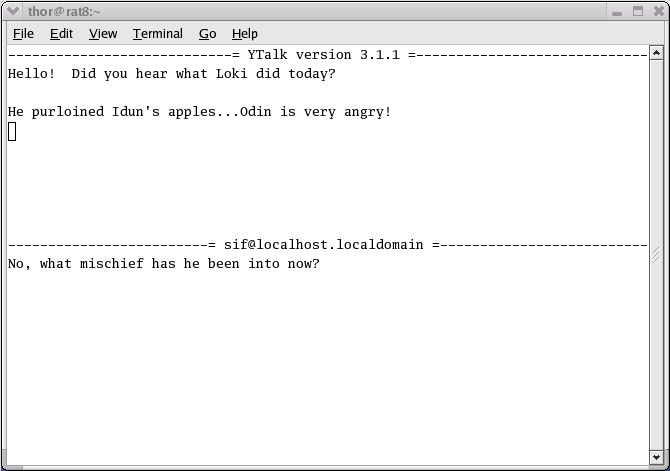
 YTalk Screenshot
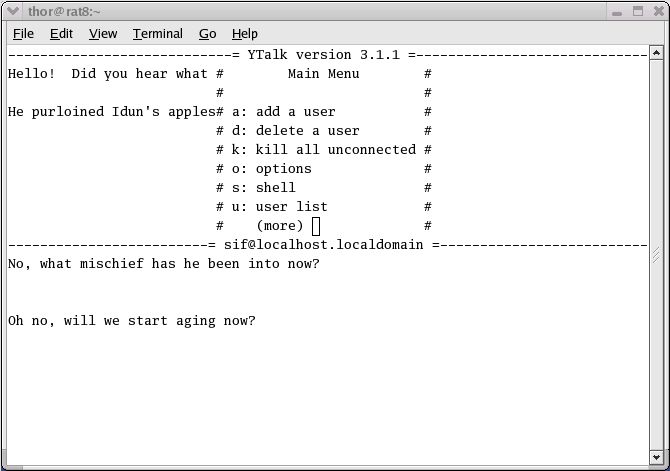 YTalk Screenshot with <Esc> Menu
Recently, I needed to setup a mechanism whereby I could text-chat with someone overseas about some business matters. I needed this to be simple, secure, and quick. This ruled out public IRC servers, and it also ruled out any mainstream instant messaging (IM) services. I decided to check out the ntalk or talk daemon that is included in almost every Unix or GNU/Linux operating system.
This short article describes how to setup a private text-chat server on a GNU/Linux system, and how two
people can securely login to the system and chat.
What is talk, anyway? It is a program that allows users to have one-on-one text chats. This is handled
by copying lines from user A's terminal to user B's terminal, and vice versa. It was originally developed
on Unix systems, but has been ported to many operating systems. Internet Relay Chat (IRC) came next, then
the Instant Messaging (IM) programs and services like ICQ and Jabber.
ntalkd is the server that notifies a user that someone else wants to have a conversation.
It acts as a repository for invitations, responding to requests by clients wishing to rendezvous for
a text chat. In effect it is the call control service (or broker) between two talk clients.
According to the man pages, the talk command appeared in
BSD Unix Version 4.2. The ntalk and talk daemons
appeared in BSD 4.3. From here on, I will refer to the ntalk daemon as ntalkd, and I will not mention talkd.
This is the server side of things, and it handles notifications and invitations in order to setup talk
sessions between two users. I will refer to talk and YTalk as the client or user-space programs.
ntalkd listens on UDP port 518. Once the actual session is setup, there are two UDP streams and one
TCP connection that exist between clients. talk or YTalk with ntalkd can allow clients on the same host to
communicate, or clients on different hosts.
Ntalkd is started and controlled by the xinetd superserver. It is off by default. In order to
configure ntalkd, xinetd must be configured to run ntalkd on demand. We also want to
restrict ntalkd to listen on the loopback address (127.0.0.1) only, so that clients can only run
talk sessions via SSH or terminals local to the Linux host. This is how you set this up:
First, make sure that the file /etc/xinetd.conf is setup properly. In the example below, you will see
that by default, the private LAN 192.168.1.0/24 and the loopback can access services run by xinetd.
#
# Simple configuration file for xinetd
#
# Some defaults, and include /etc/xinetd.d/

defaults
{
        instances               = 60
        log_type                = SYSLOG authpriv
        log_on_success          = HOST PID
        log_on_failure          = HOST
        cps                     = 25 30
        only_from               = 192.168.1.0/24 127.0.0.0/8
}

includedir /etc/xinetd.d
Next, open the /etc/xinetd.d/ntalk config file with a text editor. Make sure that you enable it and check the
source IP address restrictions:
# default: off
# description: The ntalk server accepts ntalk connections, for chatting \
#       with users on different systems.
service ntalk
{
        flags                   = IPv4
        disable                 = no
        socket_type             = dgram
        wait                    = yes
        user                    = nobody
        group                   = tty
        server                  = /usr/sbin/in.ntalkd
        only_from               = 127.0.0.0/8
}
Now, restart the xinetd superserver in order to activate the ntalkd service:
[root@rat xinetd.d]# /etc/init.d/xinetd restart
Stopping xinetd:                                           [  OK  ]
Starting xinetd:                                           [  OK  ]
You can verify that it will start automatically with the chkconfig command:
[root@rat xinetd.d]# chkconfig --list ntalk
ntalk           on
Using the netstat command, you can verify that the server is listening on UDP port 518:
[root@rat xinetd.d]# netstat -tua
Active Internet connections (servers and established)
Proto Recv-Q Send-Q Local Address           Foreign Address         State
tcp        0      0 *:ssh                   *:*                     LISTEN
tcp        0      0 *:http                  *:*                     LISTEN
tcp        0      0 rat:smtp                *:*                     LISTEN
udp        0      0 *:ntalk                 *:*                     LISTEN

[root@rat xinetd.d]# netstat -tuna
Active Internet connections (servers and established)
Proto Recv-Q Send-Q Local Address           Foreign Address         State
tcp        0      0 0.0.0.0:22              0.0.0.0:*               LISTEN
tcp        0      0 0.0.0.0:80              0.0.0.0:*               LISTEN
tcp        0      0 127.0.0.1:25            0.0.0.0:*               LISTEN
udp        0      0 0.0.0.0:518             0.0.0.0:*               LISTEN
The last server setup item is that you will need to have a valid account on your server for any
user that will be engaging in text chat via the talk or YTalk programs. Each user should have
an SSH client and network access, or the ability to login from the console.
Assuming user Thor, user Sif, and server RAT, user Thor will use his SSH client to login to RAT.
User Sif will login via her SSH client or login via a non-graphical console on RAT. Here is how
the session will go:
[thor@rat thor]$ w
  8:16am  up 2 days, 11:16,  3 users,  load average: 0.18, 0.28, 0.14
USER     TTY      FROM              LOGIN@   IDLE   JCPU   PCPU  WHAT
thor     pts/2    rat8              8:16am  1.00s  0.05s  0.01s  w
sif      pts/0    tp1               8:12am  4:18   0.04s  0.04s  -bash


[thor@rat thor]$ talk sif

[Waiting for your party to respond]
Thor will now see a "connection established" message, and text chat can begin.
[Connection established]
To quit the session, one of the users must enter <Ctrl-C>. His session will end, and the other user will see:
[Connection closed. ^C to exit]
Now the other use can hit <Ctrl-C> and end her session as well.
You may have noticed that the talk client is kind of short on features, and the screen layout is
not very clean or informative. Fortunately, there is a better client available, called YTalk. YTalk
allows 3 or more people to use text chat simultaneously. It also has a nice menu, the ability to
show other participants what you are doing in a shell session, and a nicer screen layout. Ytalk
has other features as well. For detailed info on YTalk, see the manpage, the home page, or these
two excellent articles on using YTalk:
First, you will want to grab the RPM if you do not already have it. If you would rather compile
from source, get the code from the YTalk home page. You can find the RPM at
Rpmfind.Net, or if you are running Red Hat 7.2 - 9.0 on x86,
you can grab the RPM from this server. As root, you then
install it like this:
[root@rat RPM]# rpm -Uvh ytalk-3.1.1-7.i386.rpm
Due to the fact that the ntalk daemon will still notify users to use the "talk" command to
respond to a chat request, I made a system-wide bash alias. When users type "talk", they will
get "ytalk -x" instead. Another way to do this would be to remove the "talk" package and
make a symbolic link called "talk" that points to the "ytalk" executable. Here is the line I
added to my /etc/bashrc file:
alias talk='ytalk -x'
Now, users can use YTalk exactly like they used talk, but they can now add a 3rd participant and
use the handy pop-up menu, which is invoked with the <Esc> key. Here are a couple of screenshots:
YTalk Screenshot
YTalk Screenshot with <Esc> Menu
If you run your own Linux host, it is quite simple to setup a private text-chat service. This can be
very useful as a substitute for long-distance phone calls. It also has the added benefit of being
encrypted, if you use SSH to connect to the Linux host.
Of the two talk clients available, YTalk is superior to the default client, talk.
Have fun!
