X Over SSH2 - A Tutorial
Van Emery - May, 2003
Introduction:
Have
you ever wanted to run a graphical application securely and
remotely with Linux or Unix? How about from a Microsoft Windows
PC to a Linux/UNIX host? This tutorial is about X,
SSH2, and window managers. This is not about VNC,
a completely different tool which merits its own tutorial. It is not
about thin-client computing using X, another huge topic. The
focus of this article is on how you, as a system administrator or power
user, can use X over SSH to get work done. As a special bonus, most
GNU/Linux distributions already contain everything you need,
so you will probably not need to install anything or modify any configuration
files in order to use these tools.
Objectives:
1. Review X, SSH, Window Managers, and Desktop Environments2. Explain, with examples, several different methods for using X over SSH
3. Discuss why you might want to use X over SSH; when it makes sense and when it doesn't
4. Touch on some of the security implications of using X over SSH
5. Increase your familiarity with the X11R6 Window System
Are you ready? Let's get started!
The Basics:
What is the X Window System ?
It is a system that allows graphical applications to be used on Unix-like operating systems instead of text-only applications. It is the foundation for Linux and Unix GUIs (Graphical User Interfaces). X development began at MIT in 1984, with assistance from IBM and DEC (later Sun, HP, Apollo, and Tektronix). It has the following features:
- client/server
- network aware
- hardware independent
- vendor independent
- allows interoperability between heterogeneous systems
X (current version, X11) is defined by standards and contains standardized protocols. The X server is a process that runs on a computer with a bitmapped display, a keyboard, and a mouse. X clients are programs that send commands to open windows and draw in those windows. Although the client and server are typically on the same machine, they can also run on different machines over a TCP/IP network. X typically uses TCP ports 6000 - 6063.
For example, I frequently run X over my private LAN from a laptop to my server. I also routinely use X over SSH to run GUI apps back in the United States while I am in Taiwan! The "networkability" of X allows a powerful central server to run graphical applications or even entire GUI desktops for hundreds of less powerful machines, such as X terminals or thin-clients. It is also quite common to run X servers on MS Windows PCs in order to access graphical applications on more powerful Unix or Linux machines.
There are some problems with classic X networking, though. It can be a difficult to setup, has security issues, and may not work well over low-bandwidth WAN links. It can also be broken by firewalling and NAT. These issues typically restrict classic X networking to private LANs.
The X11R6-compliant X software I will be talking about in this tutorial is XFree86, an Open Source implementation that is usually seen on Linux and the various BSDs. I have also been able to run X client/server sessions between Solaris and Solaris, and Linux and Solaris, even though Solaris 8 does not use XFree86.
For more information on X, you may want to go right to the official website: www.x.org
What is SSH ?
SSH, or the Secure Shell is the "Swiss Army knife" of host-to-host networking. It allows secure (encrypted and authenticated) connections between any two devices running SSH. These connections may include terminal (CLI) sessions, file transfers, TCP port forwarding, or X Window System forwarding. SSH supports a wide variety of encryption algorithms, including AES-256 and 3DES. It supports various MAC algorithms, and it can use public-key cryptography for authentication or the traditional username/password. The good news is that SSH does not cost anything on the client or server side, although there are some nice SSH packages for MS Windows that require you to purchase commercial licenses.
X over SSH solves some of the problems inherent to classic X networking. For example, SSH can tunnel X11 traffic through firewalls and NAT, and the X configuration for the session is taken care of automatically. It will also handle compression for low-bandwidth links.
For more info on SSH, check out the official OpenSSH website .
What is a Window Manager ?
A Window Manager is a piece of software that manages windows, allowing the windows to be opened, closed, re-sized, and moved. It is also capable of presenting menus and options to the user. It controls the look and feel of the user's GUI. With Linux or BSD, you have choices. You are free to select any number of window managers, ranging from lean-and-mean simple ones (low memory and CPU consumption), to feature-packed large ones. There are approximately 17 "mainstream" window managers, and at least 70 others.
Here is a short list of some of the more popular ones: fvwm2, twm, mwm, wm2, AfterStep, Enlightenment, WindowMaker, IceWM, Sawfish, Blackbox, Fluxbox, and MetaCity. For a really nice website that lists them all, try www.plig.org/xwinman/ .
What is a Desktop Environment ?
A desktop environment (DE) usually rides on top of a Window Manager and adds many features, including panels, status bars, drag-and-drop capabilities, and a suite of integrated applications and tools. In fact, user opinions on operating systems are typically based on one thing: the Desktop Environment. Of course, the DE is only a small part of an OS, and in Linux and Unix systems, the Window Manager and/or DE can be replaced or highly customized without violating any end-user licensing agreements.
The most popular Desktop Environments for Unix/Linux are: GNOME, KDE, CDE, and XFce. Of couse, there are others.
Curious About GUIs in General?
The rise of the Graphical User Interface is a fascinating story, and there are many books and webpages devoted to this topic. If you would like to see a basic timeline of well-known GUIs, click the link below. You will note that Unix had a successful, commercial GUI four years before Microsoft did (Windows 3.0 was the first successful version of MS Windows). I actually owned a brand-new copy of Microsoft Windows 1.0, which came with my Zenith 248 in 1986. I tried it for about a week, and gave up in disgust. Of couse, Apple preceded everyone else with a successful commercial GUI.
For the Record - A GUI Timeline
How to use X over SSH - Examples
Here, you will see four different setups:
1. X over SSH on a LAN
2. X over SSH on a long-distance WAN
3. Desktop Environment over SSH
4. X over SSH from a Win32 PC to a Linux host
Environment:
Red Hat 8.0 on a Pentium III IBM Thinkpad Laptop (LAPTOP) 192.168.1.191Red Hat 7.3 on a Pentium II 400 MHz Dell Optiplex (LAB)
Red Hat 7.2 on a Pentium II 350 MHz Dell Optiplex (HOUSE)
Red Hat 8.0 on a Pentium III 667 MHz generic tower, 256 MB RAM (RAT) 192.168.1.2
Note: I was able to use FreeBSD
on RAT's hardware to test some of the X over SSH scenarios. LAPTOP
to BSD-RAT worked fine.
Assumptions:
1. You have X server software on your "local" host/machine/PC2. The "remote" system (should be a Linux or Unix host) should have xterm, xeyes, xcalc, xlogo, xedit, xload, xclock, and twm, mwm, Gnome and/or KDE
3. Optionally, you have loaded xsnow, rclock, rxvt, xpaint, xdaliclock, Blackbox, wmaker, and fvwm2 ( I have some of these Red Hat x86 RPMs here )
4. The firewalling setup on your hosts allows the SSH session to take place
5. You have sshd configured and running on the "remote" system
Setup #1: Session from LAPTOP to RAT over 10/100 Switched Ethernet
1. On RAT (where the X Client programs are located), you can be in runlevel 3 or runlevel 5. It does not matter.2. On RAT, run "watch netstat -tn" so that you can see how many connections are opened up during your X over SSH sessions. If you can open another window, it might be good to also run "top", so that you can watch CPU utilization and processes.
2. On LAPTOP (where an X Server will be running), you put the system into runlevel 3. If it is in runlevel 5, you can login as root and issue the command: init 3
to drop it into runlevel 3. Use the "runlevel" command to verify. The last number is your current runlevel.
4. LAPTOP: Login as a regular user on one of the terminals. Enter "xinit". A small window should appear. In the window, type in the following:
ssh -p 8400 -l gomer -X -v 192.168.1.2
Notes: -p 8400 is only required if your server runs a non-standard TCP port. If yours runs on the default port (TCP port 22), there is no need to add this option.
-l username is only required if you do not have matching usernames on LAPTOP and RAT
-X allows X forwarding. This is the default, so it is not required. -x can be used to disable X11 forwarding
-v is verbose. This lets you watch what is going on.
You may be prompted to accept the public key. Then enter your password. Once you are logged in, you can do one of three things: run a GUI app, start a window manager/desktop environment, or run shell commands. Here, we will concentrate on using a GUI remotely.
Just for fun, let's start a GUI app:
xcalc
You should get a nice black and white calculator in the upper left corner. You will not be able to move it anywhere. Kill it with <Ctrl-C> in the terminal window. Now, let's start one of the window managers that always comes with X11: mwm (Motif Window Manager)
mwm
Once the window shows up with a border and some widgets, you can right-click the mouse and get a menu. Open up an xterm by typing "xterm" and enter the following command:
xclock -update 1 -hd green
This should bring up an xclock. Because the windows manager is doing its thing, you can resize or move the xclock, and you can minimize the xterm you used to open the clock. Now, if you have loaded the xdaliclock software on RAT, you can open a new window and run "xdaliclock". This is a good X-windows test utility.
Back on RAT, note how many TCP sessions there are to the loopback address! What is the processor utilization?
Now, for the more useful program: open a new terminal (xterm or rxvt) and type "mozilla". This will let you run a web browser remotely, with all the bells and whistles.
My RAT machine has the game "iagno" installed, as well as "ksokoban". Run these to get an idea of response times with X over the LAN.
Now, after you are done playing with the Motif Window Manager and all the X apps, close each window and right-click an empty space on the desktop, select "Exit", then exit from your SSH session.
Repeat the whole process with twm (Tab Window Manager). If twm does not exit as cleanly as mwm, you may have to use <Ctrl-Alt-Backspace> to break out of the X session. <Ctrl-Alt-Backspace> is the "escape hatch" from an X Window session.
You can try WindowMaker (wmaker), Blackbox (blackbox), ICEwm (icewm), and FVWM (fvwm2) as well. One thing you will note is that some window managers open more quickly than others, and some are easier to use than others.
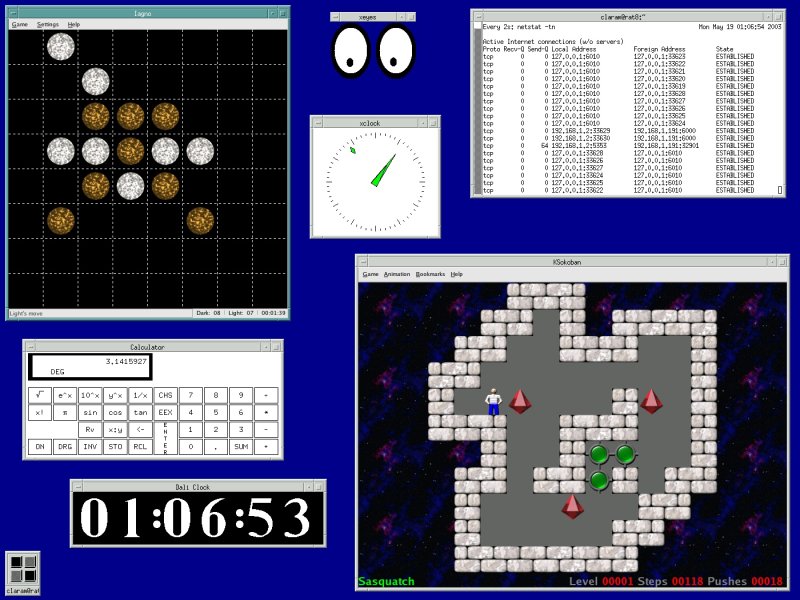 Screenshot of X over SSH sessions on LAN (Click to Enlarge)
Setup #2: X over SSH from LAPTOP to LAB and HOUSE on the other side of the Pacific Ocean
Router Hops = 10-22(Firewall + NAT traversal) on both ends
Avg. Latency <= 200 ms
Bandwidth on LAPTOP side in Asia = 128 Kbps up / 768 Kbps down
Bandwidth on LAB side in the U.S. = T1 (Frame Relay)
Bandwidth on HOUSE side in the U.S. = 384 Kbps up / 768 Kbps down
Now, let us run some X apps over SSH inside the mwm window manager....on a low speed link, through 2 NAT firewalls. Pretty much the same as on the LAN:
xinit
ssh -p 8400 -v -l velson -X -C LAB (where LAB is defined in /etc/hosts, or you can use the IP address here)
What is the -C option for? It tells SSH to compress the data. This improves performance and reduces bandwidth utilization over WAN links.
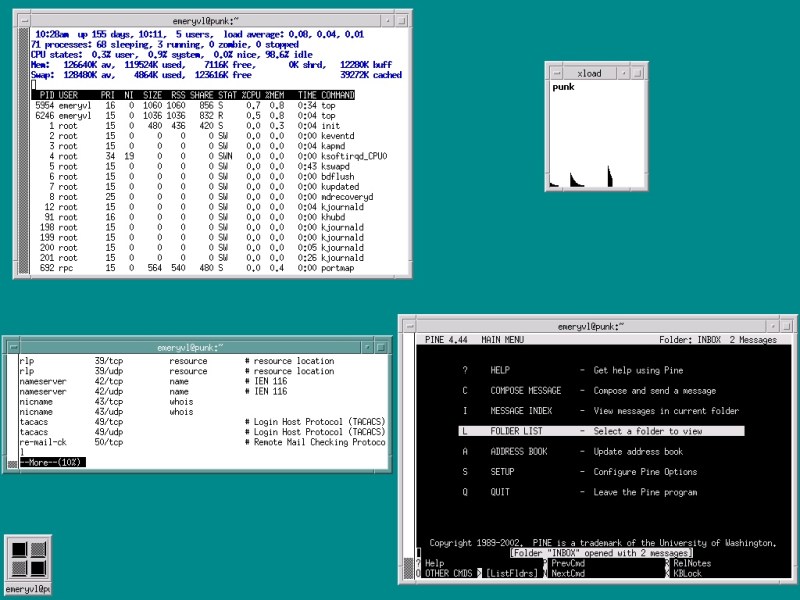 Screenshot of
X over SSH sessions over long distance and low-bandwidth WAN link
Screenshot of
X over SSH sessions over long distance and low-bandwidth WAN linkOver this relatively low-bandwidth connection, it takes the window manager about 30 seconds to start up. Running up to 4 or 5 windows is feasible, but window opening, moving, and re-sizing response is very slow. Text-based X apps, such as xterm, rxvt, xedit work reasonably well. xcalc or xpaint will give you a good idea of the latency/delay/response time you can expect over this kind of connection. You could also try "xclock -hd green -update 1" and "xdaliclock -24 -cycle" , and "xeyes" to get a better feel for responsiveness over the WAN link.
When you are done, close all of the windows and exit from mwm. Then exit from SSH.
Setup #3: X over SSH from LAPTOP to RAT with a Desktop Environment (KDE and GNOME sessions)
This time, we will bring up a complete Desktop Environment (DE) over SSH, specifically Gnome and KDE. It should not be a surprise to you that this can be done, since the DEs run on top of the X Window System.On LAPTOP, login as a regular user on one of the terminals. Enter "xinit". A small window should appear. In the window, type in the following:
ssh -p 8400 -l gomer -X -v 192.168.1.2
where -p is the SSH port your SSH server listens to, gomer is a valid user on RAT, and 192.168.1.2 is the IP address of RAT.
Enter your password, then enter the following command: startkde (of couse, this assumes that KDE is installed on RAT)
You should see a normal KDE startup, with the exception of a sound system error. You can safely ignore the sound system error, as X does not define any mechanism for playing sounds over the network (Drat!). You should be presented with a typical KDE desktop work environment. Go ahead and use it! Over the LAN, the response should be quite good (especially in a 10/100/1000 switched Ethernet environment). You should even be able to play games like kasteroids or iagno with no noticeable delays. gqview is also a good app to test over the network, as it displays large, colorful images and lets you manipulate them.
I have even been able to run Xine over X over SSH to watch VCDs, MPEGs, and QuickTime movies on RAT! Even more amazing, is that I have been able to run OpenGL 3D-accelerated games like Tuxracer on X over SSH. There is some noticeable "jitter", since every frame is being encrypted, sent over the network, then decrypted, but it is playable. The only thing you have to keep in mind is that the OpenGL capable hardware and drivers have to be on the X Server side. In my test, the X Client (which had the tuxracer executable), did not have a 3D video card or OpenGL drivers, but the machine with the X Server (and no tuxracer executable), did.
To exit, close all windows and applications, then click on the "logout" item in the KDE start menu. KDE seems to exit cleanly, leaving no leftover KDE processes running after you logout. Now exit from your SSH and xinit sessions.
Now, let us try a Gnome session over the network from LAPTOP to RAT:
Start xinit and start your SSH session as you did for KDE. Then enter the following command: gnome-session
Just like the KDE example, you should see a normal DE startup, with the exception of sound system warnings. Now use your desktop, and check out all the same apps you did with KDE. The desktop should be responsive and function correctly.
To exit, close all apps and windows. Logout from the Gnome start menu "logout" item. Exit from SSH and the xinit session. Unfortunately, in my testing I noticed that the gnome-sessions started over SSH tend to leave anywhere between 1 and 4 processes running on the remote machine! You can check this out yourself by running "ps -aux | grep gomer" on the remote machine (when gomer is not otherwised logged into a graphical environment on that machine). You may very well see some Gnome processes still running, and you will have to kill those processes manually with the "kill" or "pkill" commands. Clearly, this is unsatisfactory for normal use. For that reason, I would not recommend that you run a Gnome DE over SSH with RedHat 8.0.
Now for another little exercise: Let's say that you are already running a desktop session on LAPTOP, and you don't want to jump out of it in order to do some work on a remote desktop elsewhere on your network. How can you do this?
First of all, it does not matter if LAPTOP is at runlevel 3 or runlevel 5, the scenario is that you have an X session (or a complete desktop GUI) running on display :0. Here is what you can do:
Hit <Ctrl-Alt-F2> (or any other open TTY). This should switch you to a text screen. You can switch between terminals with <Alt-F1> through <Alt-F6>, which is the typical setup for most Linux distros. To get back to your existing GUI session, hit <Alt-F7>. Now, from your new tty, login and type the following: xinit -- :1 vt12
This will start the X server up on another display (:1), instead of the one that is running (probably :0). The vt12 argument is optional, but it binds the GUI session to the <F12> key instead of to the next available function key. If you leave it out, it will start up on <F8>. Want to open more GUI sessions? Do the same thing with :2 instead of :1 !
Now SSH into the remote host and start mwm, wmaker, startkde, or whatever GUI environment floats your boat. You can toggle between the two GUI sessions on LAPTOP with <Ctrl-Alt-F7> and <Ctrl-Alt-F12>. Let's see you do that on Windows XP! You can also use the same technique when the X/GUI sessions are all local to your machine.
Running a Desktop Environment over the WAN
I also tested running a KDE session from a Linux host that shares OC-3 Internet bandwidth in Asia to the LAB machine in the U.S., which is part of a network fed by a Frame Relay T1. I also used the compression option with SSH. The session was very slow, and extremely sluggish. It was almost unusable. Of course, KDE opens up 14 windows for a typical desktop, and has many spiffy graphical effects for menus and buttons. I don't think this would work well at all over any kind of dialup or ISDN BRI circuit. I would not run Gnome over the WAN at all, because it is a real hassle to have to manually kill Gnome-related processes when you are done with the session.
On the other hand, mwm, wmaker, and blackbox are actually usable over a long-distance WAN link, even through my home ADSL connection. They are slow, but they have far fewer windows to open and no spiffy eye-candy. WindowMaker is probably the nicest looking window manager in the low-frills department, with Blackbox being next. If you just want a bunch of xterms, then mwm or twm should work just fine.
One final note on running a Desktop Environment over a WAN or a LAN: You may want to make sure your desktop does not have any fancy screen savers configured. This could be a huge bandwidth hog. Use a simple screen saver, or a blank screen saver.
Setup #4: X over SSH from a Win32 PC to RAT over the LAN
What if your organization does not use Linux or FreeBSD on the client side, but you have Linux or Unix servers to administer on your LAN? How about running SSH and an X server on a Win32 box so that you can run GUI tools over the network on your servers? This is not hard to do, since X11 is an open protocol, and anyone can implement a compliant X server that runs on any hardware or OS. Rather than review all of the various X servers available for Microsoft Win32, I will tell you how I configured it to work on various Windows 98, Windows NT 4, Windows 2000, and Windows XP boxes with X-ThinPro and SecureCRT.Note: you can use PuTTY instead of SecureCRT, which is free, although Secure CRT is a nicer package with some extra tools.
For my testing, I used the following setup:
- Laptop with Windows XP
- X-ThinPro v6.1 (This is made by Labtam), a good X Server for Win32
- SecureCRT 3.3.3 (Made by VanDyke software), a nice SSH/Telnet/Rlogin/Serial terminal for Win32
Basically, you install the X server, configure it, and start it before you initiate your SSH session. Whether you use SecureCRT, PuTTY, or some other SSH client, you will have to find the checkbox for X11 tunneling and make sure that it is enabled. The SSH setup is much easier than the X server setup. On the X server, you will setup things like color depth, screen size, window mode (single, multiple, full screen, or multiple + remote window manager). I found that the most useful window modes for single apps were the "multiple" mode (which uses a local window manager) and the "single" mode (which allows you to run a remote window manager like mwm). To run a full WindowMaker or KDE desktop, the "full screen" mode worked well (use <Ctrl-Esc> to get out of it). You will have to play with the settings on your Win32 X server in order to configure it correctly for your particular application.
Here are some screenshots of X over SSH on a Win32 box:
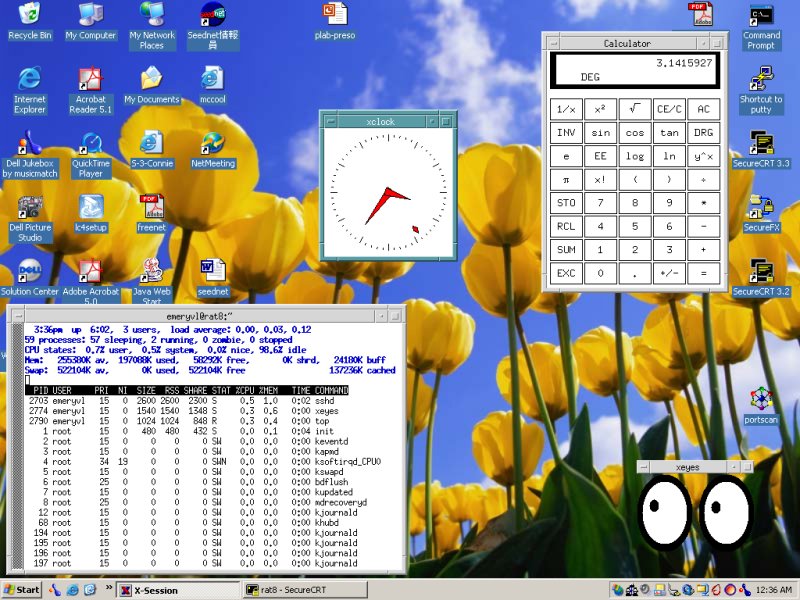 Individual X apps running on a Windows XP desktop
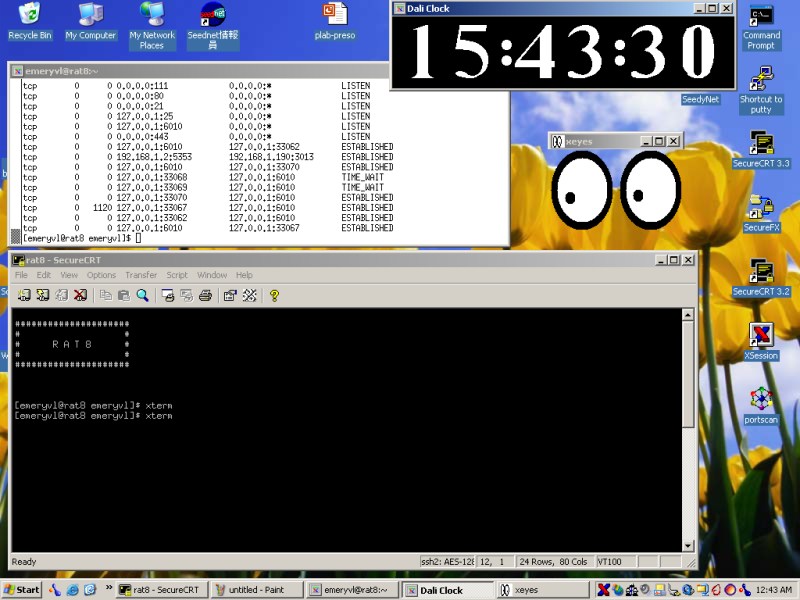 "Multiple" window mode.
Uses local (X-ThinPro) window manager
"Multiple" window mode.
Uses local (X-ThinPro) window manager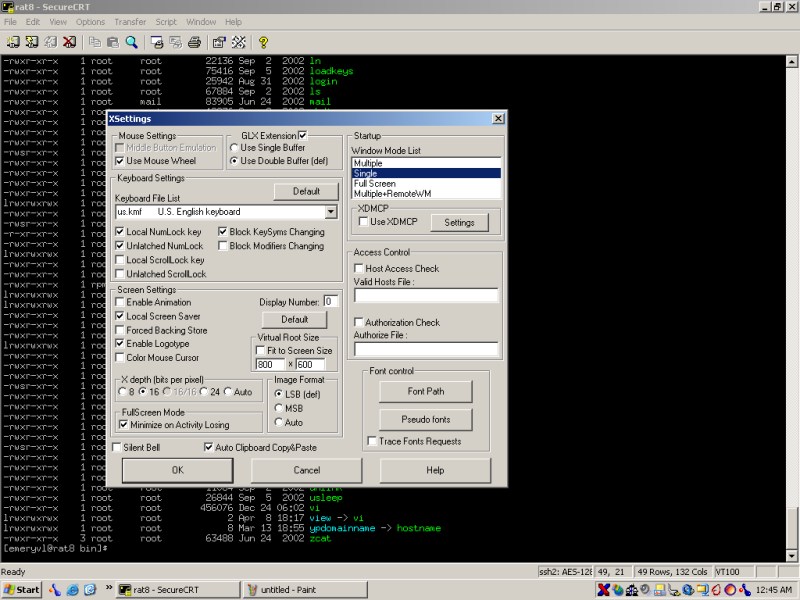 X-ThinPro X server setup
window on Windows XP
X-ThinPro X server setup
window on Windows XP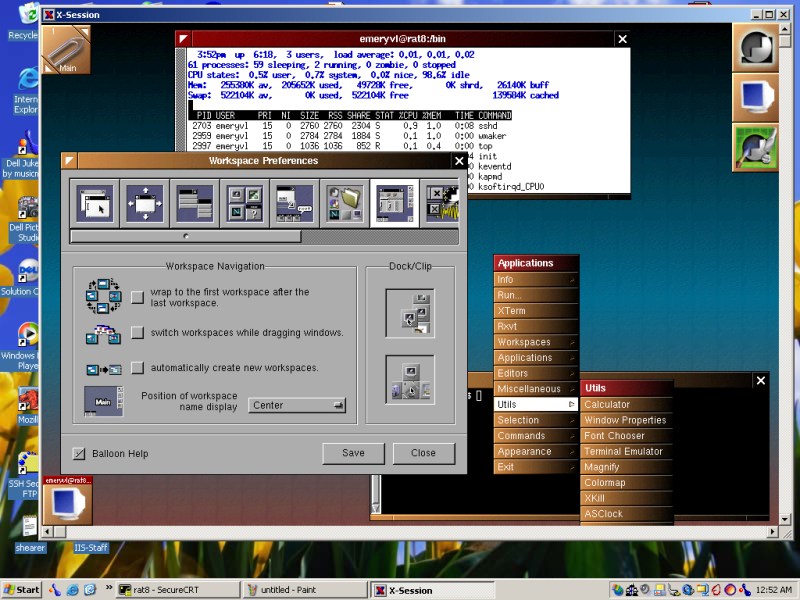 WindowMaker desktop running
on Windows XP desktop
WindowMaker desktop running
on Windows XP desktop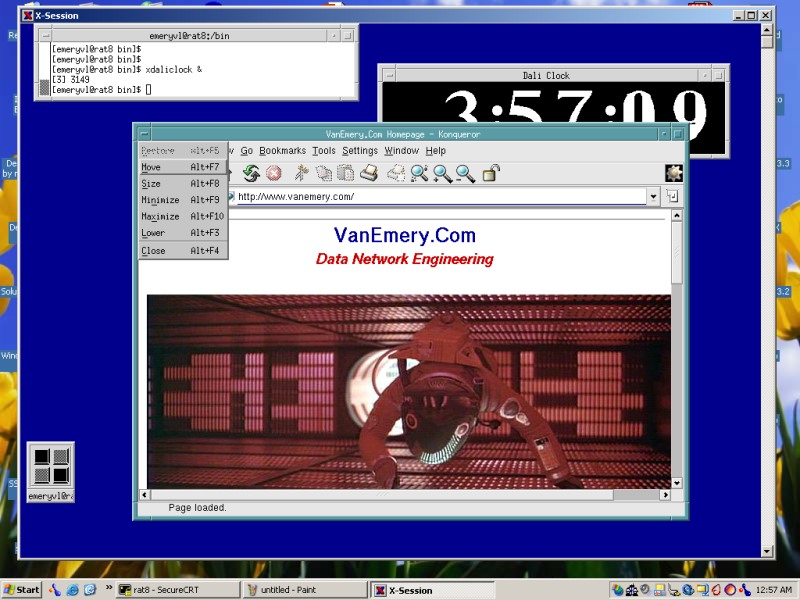 Motif Window Manager X
applications in "Single" window mode
Motif Window Manager X
applications in "Single" window mode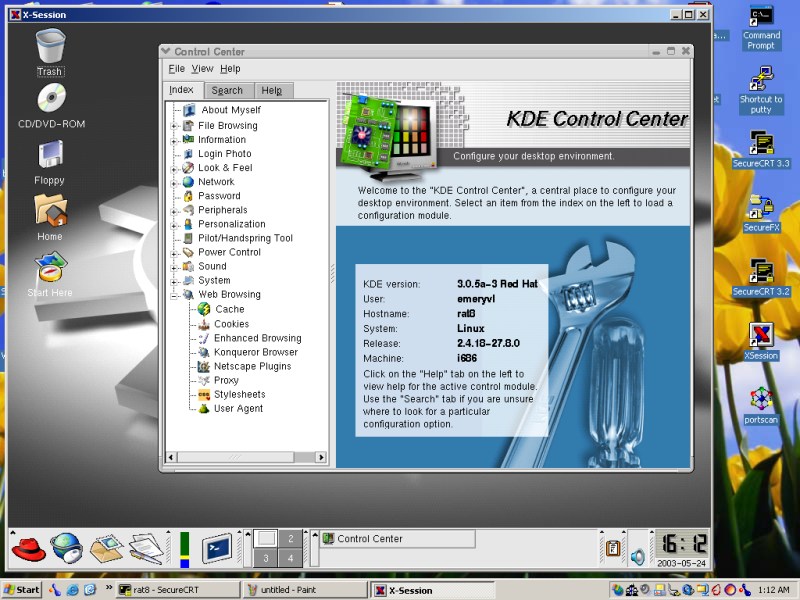 Full remote KDE desktop
running on Windows XP desktop
Full remote KDE desktop
running on Windows XP desktop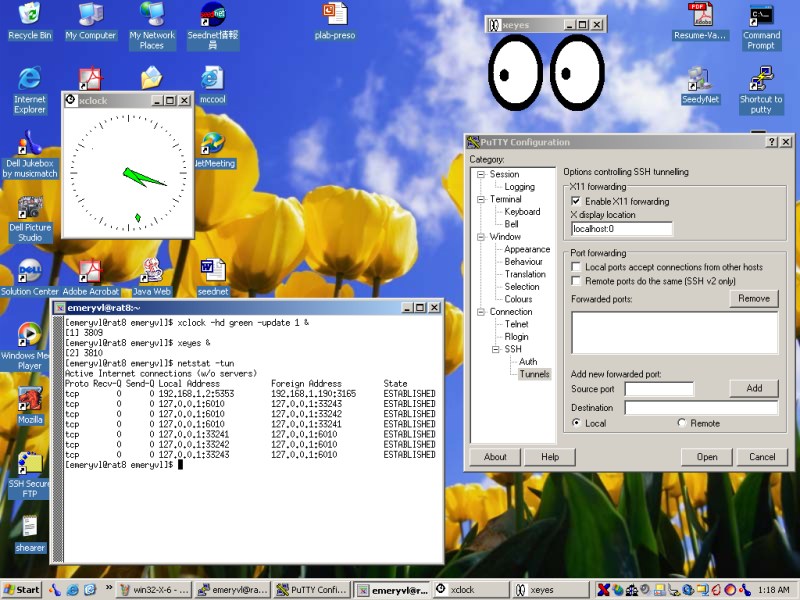 X over SSH on Win32 with PuTTY (note the
PuTTY port forwarding configuration window)
X over SSH on Win32 with PuTTY (note the
PuTTY port forwarding configuration window)How do you initiate the X session?
- Make sure the X server is configured and running
- Open your SSH session (with X11 forwarding enabled)
- type xterm, or your window manager command, or the name of any other X program
You should now be in business!
Overall, it is more of a hassle to setup X over SSH on a Win32 platform than it is on a Unix/Linux system. However, once properly configured, it should not present any problems and will allow you to access more powerful machines over the network.
When and Why would you use X over SSH?
Good question. Who needs a WIMPy (Windows, Icons, Menus, Pointing device) GUI interface, anyway? There are plenty of good Command Line Interface (CLI) tools out there for system administration, as well as text-based menu applications, and HTTP/HTML admin interfaces. I will suggest that there are six (6) reasons that you might want to use X over SSH:1. You need to have 2 or more terminals open at a time, so that you can view log files, processes, network connections, or other debugging information while you make changes in another terminal. Having mutliple X terminals open on the same screen can help you troubleshoot, debug, or complete tasks more quickly. Another benefit is that scroll-back is possible in each window.
2. You need to run a GUI tool that does not have a CLI/menu equivalent. Maybe you need to manipulate an image on a remote machine with gqview and the gimp, or watch a Gaim instant messaging window? Maybe you need to run the Ethereal protocol analyzer at a remote location?
3. You need to access a remote, secure network to handle an administrative or troubleshooting task with a web browser. The web browser must be part of the same local, firewalled network in order to access the device. (You could do this with SSH's port forwarding feature, though.)
4. You need to quickly access YOUR desktop to retrieve some piece of critical information, and the server/workstation in question is at a different physical location. Rather than walking/driving to building or facility, you can jump on the nearest Linux box and access your desktop.
5. There is some type of requirement to run an X application over the network, and you are concerned about security.
6. You may want to impress your co-workers / friends. Perhaps they have never seen distributed graphical applications with strong encryption...
When would you NOT want to use X over SSH? Some hosts do not have any X software installed, due to security or hardware constraints. Also, X apps may not be appropriate or useful over low-bandwidth links.
In short, you can use X over SSH in order to make administrative or user tasks more convenient. This assumes that the task requires a GUI or would merely be more efficient using X. It is the next best thing to being there!
Performance Characteristics of X over SSH
One thing I have not seen in existing articles about X over SSH (or regular X networking, for that matter) is a chart showing CPU, memory, or bandwidth usage. If you are planning to run X over SSH operationally, you need to have a feel for what types of resources are required to support these protocols. As you might suspect, there is a wide variation in network and server utilization, depending on what exactly it is that you are doing. The following charts should help illuminate the requirements.
X11R6 GUI Comparison Table
| Window Manager /
Desktop Env. |
# of X Windows open |
% memory used by
GUI processes |
CPU Load |
Total Number of GUI-related
processes |
Notes and comments |
| mwm |
3 |
2.7% |
< 2% |
3 |
Fast. Exits cleanly. |
| twm |
3 |
2.3% |
< 2 % |
3 |
Fast. Exits cleanly. Less intuitive
than mwm. |
| fvwm2 |
9 |
5.7% |
< 2 % |
9 |
Longer load time compared with mwm
and twm. Exits cleanly. |
| wmaker |
3 |
2.6% |
< 2 % |
3 |
Relatively fast, looks nice, very
customizable. Exits cleanly. |
| KDE |
14 |
81.2% |
< 3 % |
20 |
Comes up slowly. Exits cleanly.
Fairly responsive on LAN, complete DE. |
| Gnome |
13 |
41.5% |
< 3 % |
16 |
Comes up slowly. DOES NOT EXIT
cleanly (left 2 windows and 4 processes open that had to be killed
manually). Fairly responsive on LAN. Looks nice, complete
DE. |
| blackbox |
3 |
2.5% |
< 2 % |
3 |
Slower to load than mwm or twm, but
faster than the others. Fast, responsive, uncluttered. Customizable.
Exits cleanly. |
Note: The tests were done with the base Window Manager or DE plus an xterm and xdaliclock running.
X over SSH Bandwidth Requirements
Using LAPTOP, RAT, a 10/100 Ethernet switch, and Ethereal (a nice Open Source packet analyzer running on RAT), I was able to capture some bandwidth statistics for various X over SSH scenarios:
X over SSH
Traffic Chart
| X Client (Program)
|
Avg. BW Util. (bi-directional) |
Packets Per Sec. (bi-directional) |
Avg. Packet Size |
Comments and Notes |
| xdaliclock -cycle (1) |
162 Kbps |
77 pps |
262 bytes |
|
| xdaliclock w/SSH compression (2) |
87 Kbps |
75 pps |
145 bytes |
Used the -C option in the SSH command |
| mwm window reposition (3) |
4.26 Mbps |
3959 pps |
135 bytes |
Constant window movement. See
note. |
| mwm window repos. w/compression |
1.57 Mbps |
1825 pps |
107 bytes |
Constant window movement w/SSH compress. |
| xclock -update 1 (large) (4) |
3 Kbps |
2.1 pps |
155 bytes |
Resized to 1/4 of screen |
| xclock (large) w/compression (5) |
2 Kbps |
2.1 pps |
92 bytes |
Same as above, with -C option in SSH
cmd. |
| kasteroids arcade game (6) |
1.1 Mbps |
163 pps |
843 bytes |
Game was fairly responsive |
| kasteroids game with compression |
168 Kbps |
61 pps |
346 bytes |
Game was fairly responsive |
| KDE session startup (7) |
2.35 Mbps |
485 pps |
606 bytes |
Opened 12 windows |
| KDE session startup w/compression (8) |
249 Kbps |
152 pps |
205 bytes |
Opened 12 windows, took longer to load |
| KDE session w/lots of activity (9) |
865 Kbps |
236 pps |
457 bytes |
Desktop was responsive. See note. |
| KDE session w/compression |
257 Kbps |
178 pps |
180 bytes |
Desktop was responsive |
| Creating a text file in Pico in an xterm
(10) |
13 Kbps |
13.6 pps |
123 bytes |
Typical text editor session |
| Abiword word processor (11) |
171 Kbps |
68.4 pps |
312 bytes |
Worked fine. See note. |
| Abiword w/compression |
48 Kbps |
50.3 pps |
120 bytes |
|
| Mozilla browser window scrolling
(12) |
2.31 Mbps |
410 pps |
703 bytes |
Constant scrolling of web page up &
down |
| Mozilla window scrolling w/compression |
537 Kbps |
222 pps |
302 bytes |
Save as above, with -C option in SSH
cmd. |
Notes:
All X Client tests were done in mwm (Motif Windows Manager) unless otherwise noted. Where compression was used, it was at the default, level 6.
(1) xdaliclock -24 -cycle is a good X client test, as it is constantly changing across the entire window
(2) xdaliclock -24 -cycle ran over a compressed SSH session. SSH command was ssh -p 8400 -v -X -C 192.168.1.2
(3) about 70 seconds of dragging an xterm window around the screen in a constant circle. Throughout the testing, window repositioning, scrolling, and window resizing used lots of bandwidth and generated a large number of packets per second.
(4) xclock -hd red -update 1 is another good X test, as it generates constant motion and is very predictable
(5) xclock -hd red -update 1 run over a compresed SSH session. SSH command was ssh -p 8400 -v -X -C 192.168.1.2
(6) kasteroids is a 2D Asteroids clone that comes with the standard KDE desktop. Ran fine over LAN.
(7) Without compression, KDE generated > 8500 packets and 5.17 Mbytes of traffic during startup.
(8) With compression, KDE generated > 3500 packets and 734 Kbytes of traffic during startup.
(9) This test was fairly subjective. I spent 7+ minutes in KDE doing various things: opening and using Kate, Evolution, Mozilla, Konqueror file manager, the calculator, opening menus, moving windows, switching desktops, etc. It was a 7 minute hyperactive desktop session.
(10) Ran the Pico text editor from an xterm, typed in a letter.
(11) Abiword, a graphical word processor, was used. I typed in text, resized a paragraph, changed fonts, performed a cut and paste, highlighted text and bolded, and saved the file. If this test were run over a much longer period with a higher percentage of typing, the average pps and bandwidth utilization would undoubtedly be less.
(12) The www.cnn.com web page was scrolled up and down in a Mozilla window for about 70 seconds to capture the statistics.
As you can see, there is a huge variaton in packet size, bandwidth utilization, and packets per second, depending on the type of application and what you are doing with the window. You can also see how running a full DE with multiple windows running would increase the bandwidth requirements. Although the table shows average packet size, the variation in size ran from 52-byte IP packets to 1500-byte IP packets. Also, the values were the average of the whole test session. The X apps will have peak traffic values well in excess of the average.
Don't let the > 1.5 Mbps average bandwidth utilization for the window reposition deter you from using X over a WAN link. When you run X over a low-speed WAN link like my ADSL line (768 Kbps down/128 Kbps up), you can still run a window manager and reposition windows, there is simply a noticeable time lag. X11 and TCP/IP compensate and get the job done, even though you have to wait. The three most important items that I gleaned from the bandwidth tests are as follows:
1. X Client traffic varies significantly between different apps and activities.
2. The ssh -C compression option makes a noticeable reduction in bandwidth that would be useful over WAN links. Use it.
3. Moving windows, resizing windows, and scrolling within windows seem to be the most bandwidth intensive operations.